iOS - 101
iOS
iOS - iOS - 101
iOS and MacOS Programming course
Before
This tutorial is intended to show the basic building blocks needed to jump into a production-ready iOS App.
Please review the App Design before starting the tutorial.
Requirements
In order to get the full benefits of this course you should have the following environment
- Mac OS Mavericks or later
- Xcode 9.4
- Xcode developer tools (includes git)
- Access to tutorial github repo
Xcode Walkthrough
Xcode is the preferred IDE for Mac OS X development and the only official one for iOS development.
Intro
Up until very recently Objective-C was the primary programming language you use when writing software for OS X and iOS. It’s a superset of the C programming language and provides object-oriented capabilities and a dynamic runtime. Objective-C inherits the syntax, primitive types, and flow control statements of C and adds syntax for defining classes and methods. It also adds language-level support for object graph management and object literals while providing dynamic typing and binding, deferring many responsibilities until runtime.
Very recently Apple released Swift and is expecting that developers start adopting it gradually into their apps, but at the moment Objective C is still very predominant.
Objective-C is Fun
Objective-C Tutorial
From C++ to Objective C
This book is pretty short and straightforward, you can read it completely if you want, or just read the following sections : 1,2,3,4,5,6 and 9
Objective C Cheat Sheet
Blocks
Blocks do not consist of a new programming discovery in Objective-C. They exist in other programming languages too (such as Javascript) with other names, such as Closures. In iOS, they first-appeared in version 4.0, and since then they’ve known great acceptance and usage. In subsequent iOS versions, Apple re-wrote or updated many framework methods so they adopt blocks, and it seems that blocks are going to be partly the future of the way code is written. But what are they all about really?
Well, a block is a self-contained, autonomous code fragment, existing always into the scope of another programming structure, as for example the body of a method. The code on the block can “interact” with the world out of it, but what takes place in the block is not visible to the scope out of it. Also, blocks can modify the values of variables being out of its body using a special way (we’ll see more later). Blocks have two great features:
- They can be executed at a later time, and not when the code of the scope they have been implemented is being executed.
- Their usage leads eventually to much cleaner and tidier code writing, as they can be used instead of delegate methods, asynchronous calls, and other out-of-order code structures, written just in one place and not spread throughout many files.
Read the rest of this article here
Programming with Swift
Swift is the new language created by Apple to bring iOS and Mac OS X development into the future. It’s is a collection of the best features from languages like C++, Objective-C, C#, etc.
Swift is a strongly-typed, type-safe language that has intrinsic support for threading, generics, type-safety.
Please read the Language Highlights, then take a look at Apple’s Swift Tour .
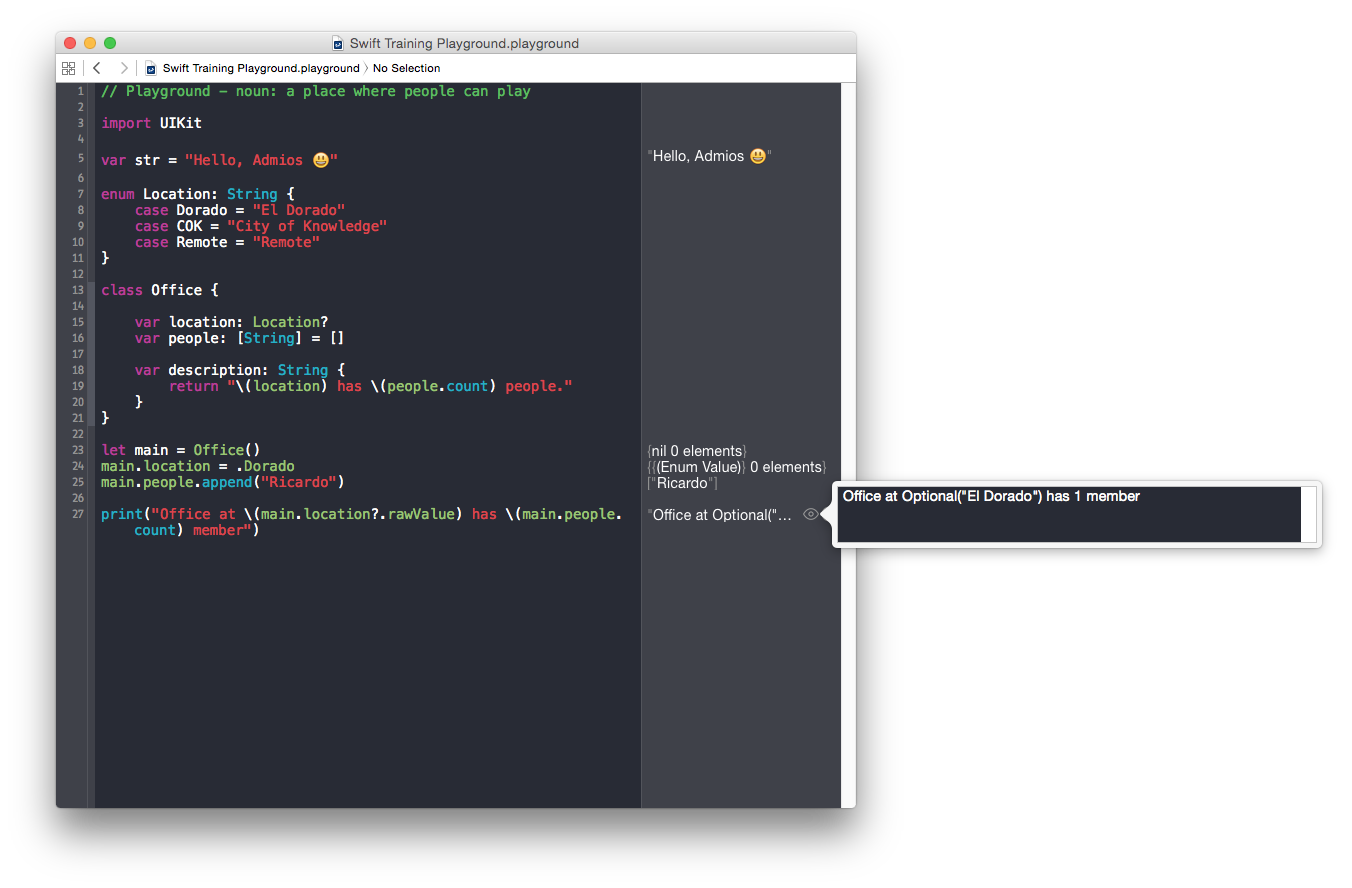
To tests Swift features easily and fast, you can create a Swift Playground from Xcode, which will let you test the language and compiler interactively. Open Xcode and choose New > Playground
Swift Programming Language
Language Reference
Memory Management
Closures
UI Size Classes
Design Mockup
Project Setup
Download the latest version of Xcode from the AppStore.
Open terminal and install CocoaPods by following the instructions on their page. CocoaPods is a framework that helps with external dependencies. It provides an automated system that downloads libraries and their dependencies and sets up your project to use the libraries directly. It also supports updating to latest versions and linking to specific versions.
Objective-C:
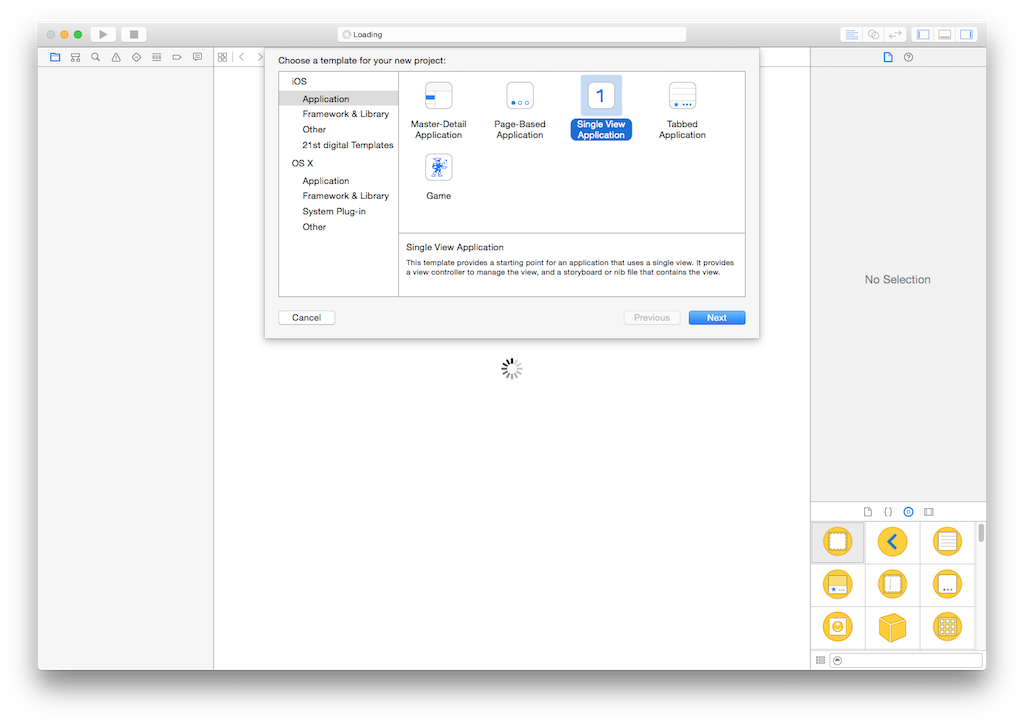
Open Xcode and select File > New Project. From that page choose Single View Application. Name the product Objc Photo App, set the organization to Admios, and the Organization Identifier to com.admios-sa. This is necessary to build to devices so don’t forget it! For Language choose Objective-C. Don’t use Core Data.
Now we need to setup our dependencies. Normally in a project dependencies are added and removed on the fly, but because we know all the necessary ones right now, we’ll create them. Close your Xcode project for now.
Open a terminal window and navigate to the directory where your project is saved. For Example ~/Desktop/Objc Photo App. Now run the command pod init to create the necessary Podfile that we’ll use to handle dependencies. Edit the Podfile to have the following content:
# Uncomment this line to define a global platform for your project
# platform :ios, '9.0'
inhibit_all_warnings!

target 'Objc Photo App'do
   pod 'PREBorderView'
   pod 'MBProgressHUD'
   pod 'FlickrKit'
   pod 'SwipeView'
   pod 'NYXImagesKit', '~> 2.3'
end

target 'Objc Photo AppTests'do
   pod 'PREBorderView'
   pod 'MBProgressHUD'
   pod 'FlickrKit'
   pod 'SwipeView'
   pod 'NYXImagesKit', '~> 2.3'
end
After creating and writing to the Podfile, we want to download the actual necessary code, so run the command pod install. This will install all the previously-mentioned libraries and their dependencies. In the future, to update dependencies just run pod update.
NOTE: CocoaPods created a Workspace (.xcworkspace) file for the app that contains both the Objc Photo App project and a Pods project, which contains all dependencies and their build steps. From now on ONLY OPEN this Workspace (.xcworkspace) file to work on this project.
Swift:
Open Xcode and select File > New Project. From that page choose Single View Application. Name the product Swift Photo App, set the organization to Admios, and the Organization Identifier to com.admios-sa. This is necessary to build to devices so don’t forget it! For Language choose Swift. Don’t use Core Data.
Now we need to setup our dependencies. Normally in a project dependencies are added and removed on the fly, but because we know all the necessary ones right now, we’ll create them. Close your Xcode project for now.
Open a terminal window and navigate to the directory where your project is saved. For Example ~/Desktop/Swift Photo App. Now run the command pod init to create the necessary Podfile that we’ll use to handle dependencies. Edit the Podfile to have the following content:
# Uncomment this line to define a global platform for your project
# platform :ios, '9.0'
inhibit_all_warnings!

target 'Swift Photo App'do
   pod 'PREBorderView'
   pod 'MBProgressHUD'
   pod 'FlickrKit'
   pod 'SwipeView'
   pod 'NYXImagesKit', '~> 2.3'
end

target 'Swift Photo AppTests'do
   pod 'PREBorderView'
   pod 'MBProgressHUD'
   pod 'FlickrKit'
   pod 'SwipeView'
   pod 'NYXImagesKit', '~> 2.3'
end
After creating and writing to the Podfile, we want to download the actual necessary code, so run the command pod install. This will install all the previously-mentioned libraries and their dependencies. In the future, to update dependencies just run pod update.
NOTE: CocoaPods created a Workspace (.xcworkspace) file for the app that contains both the Swift Photo App project you created and a Pods project, which contains all dependencies and their build steps. From now on ONLY OPEN this Workspace (.xcworkspace) file to work on this project.
UI Setup
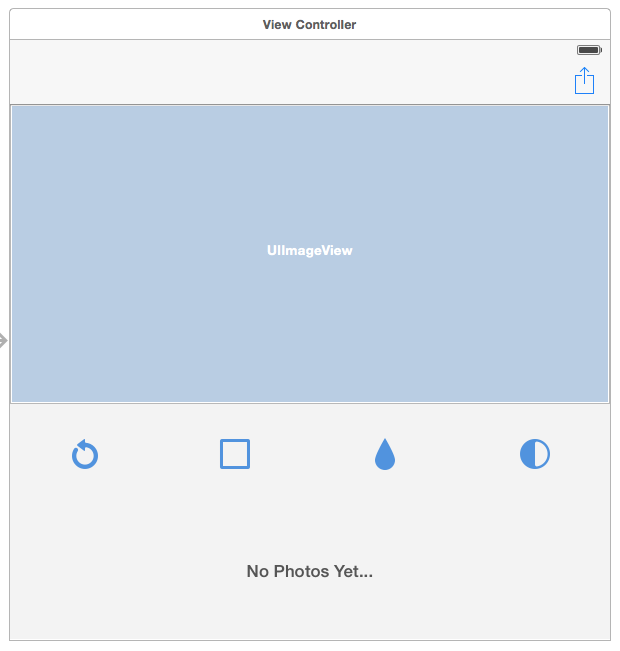
Because we already know what the app will look like, we’ll set up the UI and necessary constraints. So what are constraints? Constraints are rules that are given to the the UI system so that the UI resizes and shrinks depending on the size and orientation of the device. Constraints are a very deep and complex topic, but we’ll show the basics of them and point to deeper tutorials.
This is what we’ll build.
Now download the files in the resources folder attached to this tutorial.
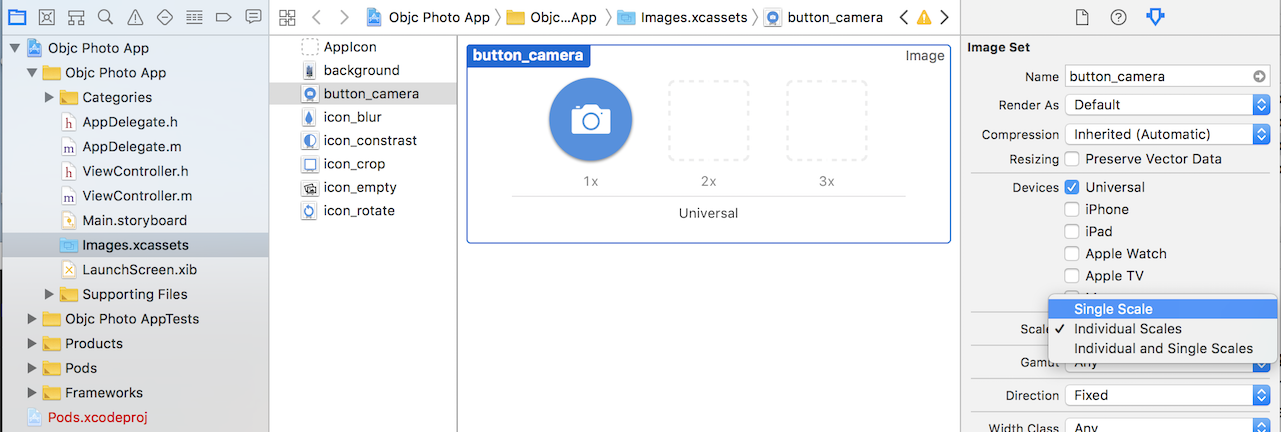
In the project, open choose Images.xcassets. This file is an image assed file, which lets us mix an match different image types, but more importantly different image SIZES to support different resolutions. It also supports vector image, so we don’t have to create different versions. For this tutorial we’ll use vector images in PDF format.
Open the utilities section of the UI editor by going to View > Utilities > Show Attributes Inspector. This will provide additional settings for the images we’ll add.
Drag all the images (background.png, button_camera.pdf, etc) into the resources area of the Images.xcassets file, then from the Attributes bar change the Scales field to Single Scale. After that, drag the image from Unassigned to Universal.
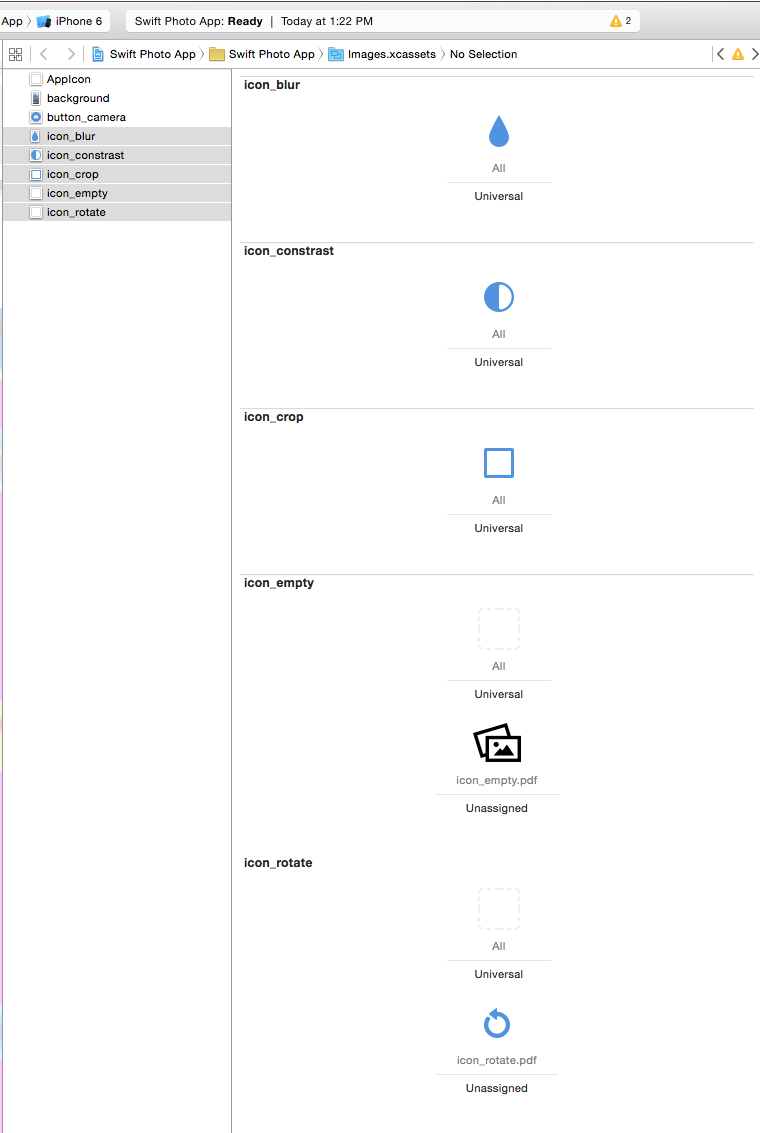
Now we are ready to setup the UI. Open Main.storyboard. This videos apply to both Objective-C and Swift. There are no differences from the UI/Storyboard side.
Note: When setting up the outlets, please add an outlet to ToolsView UIView, called toolsView.
Categories
Objective-C provides a really nice and convenient way of extending existing classes without subclassing or obtaining the original source. This is achieved using Categories. We’ll create a category for UIImageView, which will let us load images in a background thread and display a loading indicator while doing this.
Right click on the Objc Photo App folder and select New Group. Name it Categories. Now right click on the newly-created folder and add a Cocoa Class file. Make it a subclass of UIImageView for now, and call it UIImageView+Categories.
In UIImageView+Customizations.h, add the following code instead of the provided code:
#import <UIKit/UIKit.h>

@interface UIImageView (Customizations)

typedef void (^CompletionBlock)(BOOL success, UIImage *image);
- (void)loadImageInBackgroundWithURL:(NSURL *)url completion:(CompletionBlock)completion;
@end
First of all, we are importing UIKit header file, so we can use the iOS UIKit libraries. After that, we declare a UIImageView category by appending the (Customizations) part to the interface declaration. The typedef lets us easily reference a completion block as if it was a type.
Blocks are self-contained chunks of functionality. You can think of it as the combination of a function pointer and its necessary context. They are used as in-place replacements for asynchronous calls, delegate calls and callbacks. In this case, we are defining a two-parameter block, with no return.
Now switch to UIImageView+Customizations.m. Delete the existing code and add the following to start the implementation of the category:
#import "UIImageView+Customizations.h"

@implementation UIImageView (Customizations)
- (void)loadImageInBackgroundWithURL:(NSURL *)url completion:(CompletionBlock)completion {
}
@end
The first thing we want to do is create a loading indicator, and we’ll use a UIActivityIndicator for this. Write the following code in the function:
// Execute this in the main thread
CGFloat largeSide                         = MAX(self.frame.size.height, self.frame.size.width);
UIActivityIndicatorView *loadingSpinner   = [[UIActivityIndicatorView alloc] initWithFrame:CGRectMake(0, 0, largeSide, largeSide)];
loadingSpinner.activityIndicatorViewStyle = (self.image == nil) ? UIActivityIndicatorViewStyleGray : UIActivityIndicatorViewStyleWhite;
[loadingSpinner startAnimating];
[selfaddSubview:loadingSpinner];
First we find which side of our current view’s frame is larger, then use that to create a the UIActivityIndicatorView. We set the color depending on whether there is already an image on the view, and then we start the animation and add the indicator to the view.
Now the main part of the function, we’ll execute the loading in a background thread. iOS and Mac OS X both have support for POSIX threads, but the best way to handle threading is using Grand Central Dispatch or GCD, which is Apple’s threading technology. One important thing to note is that ANY UI operations have to be performed on the main thread. Add the following:
// Execute the loading in a background thread with HIGH priority
__weak typeof(self) weakSelf = self;
dispatch_async(dispatch_get_global_queue(DISPATCH_QUEUE_PRIORITY_HIGH, 0), ^{
  NSData *data = [NSData dataWithContentsOfURL:url];
  if (data) {
    UIImage *image = [[UIImage alloc] initWithData:data];

    // UI operations should always go in the main thread
    dispatch_async(dispatch_get_main_queue(), ^{
      UIImageView *view = weakSelf;
      if (view) {
        view.image = image;
      }

      [loadingSpinner removeFromSuperview];

      if (completion) {
        completion(true, image);
      }
    });
  } else {
    NSLog(@"Error loading image from URL %@", [url path]);

    // UI operations should always go in the main thread
    dispatch_async(dispatch_get_main_queue(), ^{
      UIImageView *view = weakSelf;

      if (view) {
        view.image = [UIImage imageNamed:@"icon_empty"];
      }

      [loadingSpinner removeFromSuperview];
      if (completion) {
        completion(false, nil);
      }
    });
  }
});
Let’s go through this. The first line creates a weak reference to self(this). This means that any references to self should be done using the weakSelf variable, because this will prevent reference cycles from being created, where two resources have a circular reference that will cause those objects never to be released. The second line dispatches the block to a background execution queue. That’s all we need to access a background thread. GCD takes care of scheduling and resource management depending on the queue priority.
The actual image loading is done by using NSData’s contentsOfURL constructor, which downloads data at an URL. After that we create an image from the downloaded data by using UIImages’ data constructor.
Last, but not least, we switch back to our main thread to set the image onto the UIImageView and then call the completion block. We do this by again using dispatch_async, but now we get the main queue, where UI execution is supposed to go.
We also remove the loading indicator from the superview, in this case the UIImageView itself.
Objective-C View Controller
Setting up
iOS is heavily MVC oriented, so its always good to have some background in that subject, we will be using concepts from that pattern in this tutorial.
In this particular section we are referring to the C in the MVC which refers to the controller, in this class we will include all of the code that controls the view.
With the project setup done we have a built-in class called ViewController, which inherits from UIViewController, this class is very important regardless of Swift or Objective C
Our app will have access to the Flickr API, at first, it retrieves the first 10 interesting pictures and lists them in the SwipeView at the bottom, but it also allows to search for pictures by keyword. You can select one of those pictures to perform minor alterations.
Let’s import the necessary libraries:
#import <FlickrKit.h>
#import <MBProgressHUD.h>
#import <NYXImagesKit.h>
#import <SwipeView.h>
#import "UIImageView+Customizations.h"
#import <UIView+PREBorderView.h>
Just like a lot of other programming languages the imports are at the top of the file, this will allow us to use all of the libraries we have downloaded from CocoaPods.
The private definition of the class, the on in ViewController.m, should implement a few protocols, and it should look like this:
@interface ViewController () <SwipeViewDelegate, SwipeViewDataSource, UISearchBarDelegate>
Let’s define the necessary variables:
@property (strong, nonatomic) NSArray   *photoData;
@property (strong, nonatomic) NSURL     *mainPhotoURL;
@property (strong, nonatomic) FlickrKit *flickr;
@property (strong, nonatomic) NSCache   *imageCache;
In this case this variables are private because we are defining them in our private interface, if we define them in the public interface then they are public for everyone to see.
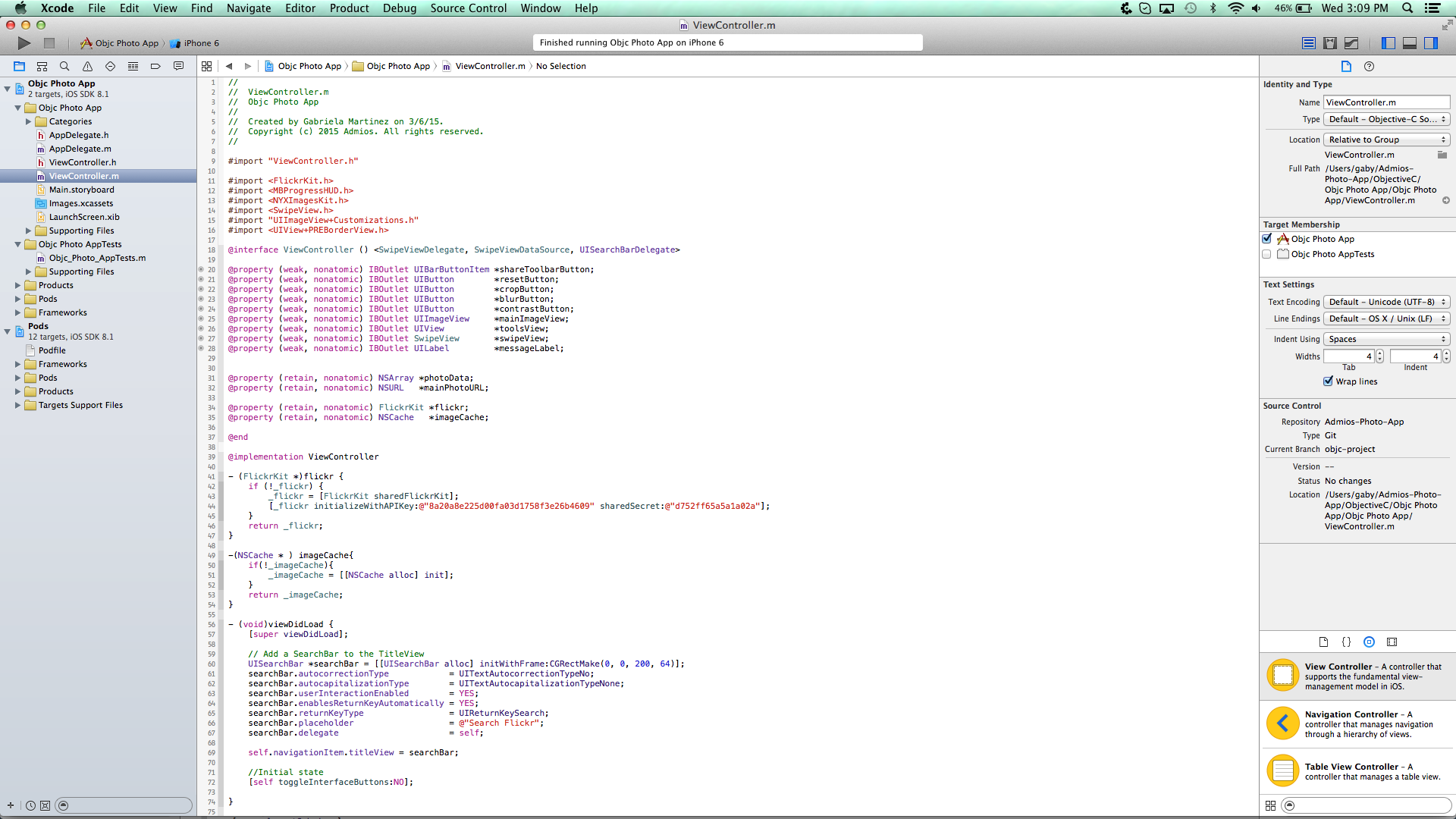
You can see there is a definition for the interface at the top of the implementation file, that’s were we’ll place our variable definitions, regarding the nonatomic and strong keywords you can learn more about them here
- photoData: will hold the pictures info we retrieve from flickr
- mainPhotoURL: the URL for the current selected image
- flickr: an instance of the initialised flickr kit that allows us to search for pictures.
- imageCache: cache that avoids downloading the same image twice.
Once we’ve created the variables we will create a custom accessor for the flickr and imageCache variables, to know more about the creation of accessors and setters in Objective C please read this section
- (FlickrKit *)flickr {
  if (!_flickr) {
    _flickr = [FlickrKit sharedFlickrKit];
    [_flickr initializeWithAPIKey:@"8a20a8e225d00fa03d1758f3e26b4609" sharedSecret:@"d752ff65a5a1a02a"];
  }
  return _flickr;
}
- (NSCache *)imageCache {
  if (!_imageCache) {
    _imageCache = [[NSCache alloc] init];
  }
  return_imageCache;
}
SwipeViewDelegate and SwipeViewDatasource
At this point we need to set up the SwipeViewDelegate and SwipeViewDataSource protocols, to know more about protocols refer to this section
To make our view controller respond to this protocols we need to set them explicitly, this can be achieved via the storyboard or via code in the view controller itself
To do it graphically via the storyboard, go to the file Main.storyboard right click on the SwipeView and then drag the circle next to the delegate property up to the view controller, then release it, do that also with the datasource, it will look like this:
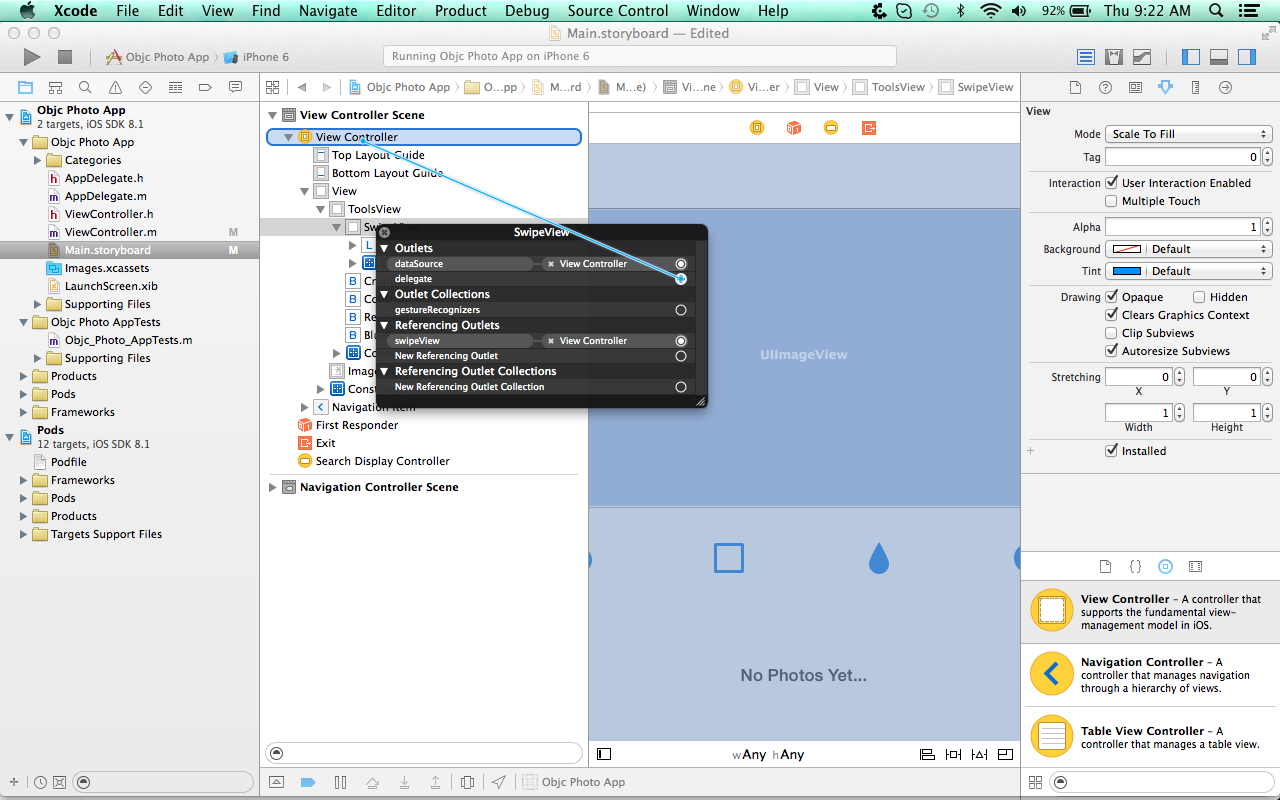
We can also do it by code doing this:
self.swipeView.delegate = self;
self.swipeView.dataSource = self;
To conform to SwipeViewDataSource protocol we must implement the following methods:
- (NSInteger)numberOfItemsInSwipeView:(SwipeView *)swipeView;
- (UIView *)swipeView:(SwipeView *)swipeView viewForItemAtIndex:(NSInteger)index reusingView:(UIView *)view;
And for the SwipeViewDelegate all of the methods are optional and we can choose which ones to implement to achieve the desired functionality, in our case we will implement:
- (void)swipeView:(SwipeView *)swipeView didSelectItemAtIndex:(NSInteger)index;
for the first method mentioned we’ll do this:
- (NSInteger)numberOfItemsInSwipeView:(SwipeView *)swipeView {
  if (self.photoData) {
    return self.photoData.count;
  }
  return 0;
}
This method is telling the swipeView that it will have as many elements as there are in the photoData array.
Next we have viewForItemAtIndex
- (UIView *)swipeView:(SwipeView *)swipeView viewForItemAtIndex:(NSInteger)index reusingView:(UIView *)view {
  if (self.photoData) {
    NSDictionary *item = self.photoData[index];

    if (item) {
      NSURL *url = [self.flickr photoURLForSize:FKPhotoSizeMedium640 fromPhotoDictionary: item];
      if (url) {
        CGFloat dimensions   = swipeView.frame.size.height;
        CGFloat cornerRadius = dimensions/2.0;
        CGRect  rect         = CGRectMake(0, 0, dimensions, dimensions);

        UIImageView *imageView = [[UIImageView alloc] initWithFrame: rect];
        imageView.layer.cornerRadius = cornerRadius;
        imageView.contentMode        = UIViewContentModeScaleAspectFill;
        imageView.clipsToBounds      = YES;

        UIImage *image = [self.imageCache objectForKey: url];

        if (image) {
          imageView.image = image;
        } else {
          __weak typeof(self) weakSelf = self;
          [imageView loadImageInBackgroundWithURL: url completion:^(BOOL success, UIImage *image) {
            if (success) {
              [weakSelf.imageCache setObject: image forKey: url];
            }
          }];
        }
        return imageView;
      }
    }
  }
  return nil;
}
This one is a little bit more complex, in this method we are creating the views that will be displayed in the swipeView, in this particular case it’s an UIImageView, we create it from scratch and set all of the necessary attributes for the image to display correctly. We will also be making use of the UIImageView category we created previously to download the corresponding image in the background, we are also storing it in our cache to avoid downloading more than once
Now for the SwipeViewDelegate
- (void)swipeView:(SwipeView *)swipeView didSelectItemAtIndex:(NSInteger)index {
  [self toggleInterfaceButtons: NO];
  if (self.photoData) {
    NSDictionary *item = [self.photoData objectAtIndex: index];
    NSURL   *url  = [self.flickr photoURLForSize:FKPhotoSizeLarge1024 fromPhotoDictionary: item];
    if (url) {
      self.mainPhotoURL = url;
      UIImage *cachedImage = [self.imageCache objectForKey: url];
      if (cachedImage) {
        self.mainImageView.image = cachedImage;
        [self toggleInterfaceButtons: YES];
      } else {
        __weak typeof(self) weakSelf = self;
        [self.mainImageView loadImageInBackgroundWithURL: url completion:^(BOOL success, UIImage *image) {
          if (success) {
            weakSelf.mainImageView.image = image;
            [weakSelf toggleInterfaceButtons:YES];
            [weakSelf.imageCache setObject: image forKey: url];
          }
        }];
      }
    }
  }
}
In this method we are telling the swipeView what to do when the user selects one of the views, in our case we will check if it’s in our cache and if it’s not we will download it in the background just like we did when listing them. this is because we are requesting a different size so if we haven’t selected it before, it will be a cache miss.
View Lifecycle
Now we are all set to start adding more interesting functionality.
At first we are going to dive into the view lifecycle, this is the heart of the UIViewController all that information is in the link provided above, it is very important to emphasize in this aspect because that will help you in building better apps.
The first method in the view lifecycle that we encounter is the viewDidLoad, in this method we are adding a UISearchBar to the navigation bar also disabling all of the toolbar buttons, this serves the purpose of setting an initial state of the view.
To add the search bar place this code inside the viewDidLoad method:
// Add a SearchBar to the TitleView
UISearchBar *searchBar = [[UISearchBar alloc] initWithFrame:CGRectMake(0, 0, 200, 64)];
searchBar.autocorrectionType            = UITextAutocorrectionTypeNo;
searchBar.autocapitalizationType        = UITextAutocapitalizationTypeNone;
searchBar.userInteractionEnabled        = YES;
searchBar.enablesReturnKeyAutomatically = YES;
searchBar.returnKeyType                 = UIReturnKeySearch;
searchBar.placeholder                   = @"Search Flickr";
searchBar.delegate                      = self;
self.navigationItem.titleView           = searchBar;
To disable all of the button we will create a new method called toggleInterfaceButtons like this;
-  (void)toggleInterfaceButtons:(BOOL)imageAvailable  {
  self.shareToolbarButton.enabled = imageAvailable;
  self.resetButton.enabled        = imageAvailable;
  self.cropButton.enabled         = imageAvailable;
  self.blurButton.enabled         = imageAvailable;
  self.contrastButton.enabled     = imageAvailable;
}
and we will call this method in the viewDidLoad like this:
[self toggleInterfaceButtons: NO];
Let’s run the app, we should see something like this:

The next method that we are covering in this tutorial is the viewDidLayoutSubviews, like the documentation states, this method informs when the view has laid out its subviews. so we will take this opportunity to add a divider on the top of the toolbar like so:
- (void)viewDidLayoutSubviews {
  [superviewDidLayoutSubviews];
  // Add a one-line divider to the top of the tools view
  [self.toolsView addRetinaPixelLineWithColor: [UIColor lightGrayColor] atPosition:PREBorderPositionTop];
}
- (This method is from a pod called
PREBorderView.)
Next comes the viewDidAppear method, in this method we will invoke the flickr API, particularly to get the latest “interesting” pictures listed by that site. To do that we have to instantiate a FKFlickrInterestingnessGetList, and then pass it to our flickr variable to make the call.
FKFlickrInterestingnessGetList *interesting = [[FKFlickrInterestingnessGetList alloc] init];
interesting.per_page = @"10";
We are setting a fixed amount of pictures to return and we won’t be managing any pagination at the moment.
Next we need to add a loading view to wait for the call to return and let the user know that the app is working on the request, in order to achieve that we do this:
// Show the loading HUD
 MBProgressHUD *hud = [MBProgressHUDshowHUDAddedTo: self.view animated:YES];
 hud.label.text = @"Loading Interesting Photos";
We will also need to implement a method for dealing with the flickr API response
- (void)parsePhotos: (NSDictionary *)response {
  NSDictionary *info = response[@"photos"];
  if ([info isKindOfClass:[NSDictionary class]]) {
    self.photoData = info[@"photo"];
    if ([[NSThread currentThread] isMainThread]) {
      [self.swipeView reloadData];
    } else {
      dispatch_async(dispatch_get_main_queue(), ^{
        [self.swipeView reloadData];
      });
    }
  }
}
To make the actual call we’ll do this inside viewDidAppear method, you can also add it as a separate method and them make the call for additional learning!:
// Call the Flickr API
__weak typeof(self) weakSelf = self;
[self.flickr call:interesting completion:^(NSDictionary *response, NSError *error) {
  if (error) {
    NSLog(@"Error getting interesting photos: %@", error.localizedDescription);
  } else {
    [weakSelf parsePhotos:response];
  }
  // Hide the loading HUD and message label
  dispatch_async(dispatch_get_main_queue(), ^{
    weakSelf.messageLabel.hidden = YES;
    [MBProgressHUD hideHUDForView: weakSelf.view animated:YES];
  });
}];
We have to pay very special attention to this particular call, there are very important things that are happening here that we need to address, first is this line:
__weak typeof(self) weakSelf = self;
What this does is that it creates a weak instance of the view controller to avoid retain cycles, this is due to the fact that in the “call” function we are passing a block of code as a parameter like a completion block, this means that this code will be executed by the function when it’s done calling the flickr API. This is very useful when dealing with asynchronous execution
Blocks are very useful and powerful but as we know with great power comes great responsibility, to know more about blocks and their syntax please read here
Inside of the block we can deal with the response that was received checking for errors and then obtaining the pictures, once we’ve done that we need to update the UI accordingly.
Because the call was being executed in the background we need to request the foreground thread to perform the UI updates, that’s done with this code:
dispatch_async(dispatch_get_main_queue(), ^{
  weakSelf.messageLabel.hidden = YES;
  [MBProgressHUD hideHUDForView: weakSelf.view animated:YES];
});
This particular snippet involves blocks and GCD (Grand Central Dispatch), what we are doing is requesting the main thread asynchronously to perform these updates.
Everything should look like this if you haven’t implemented any additional methods:
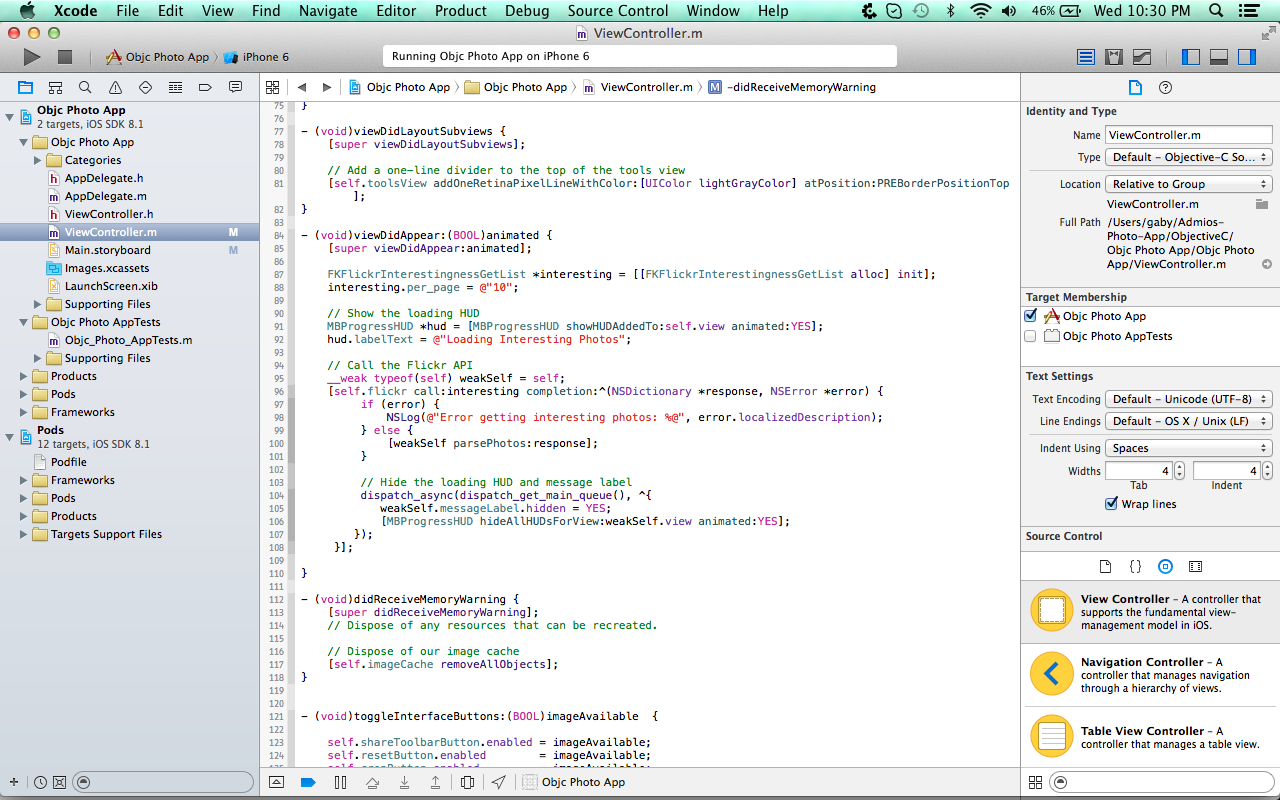
The next method that we’ll be adding is didReceiveMemoryWarning, this method is invoked whenever the app received a memory warning so that it can dispose of any unnecessary resources that can be recreated in our case is the cache memory so we will clear it.
- (void)didReceiveMemoryWarning {
  [super didReceiveMemoryWarning];
  // Dispose of our image cache
  [self.imageCache removeAllObjects];
}
If we run our app we should be able to see some pictures:

You can even select images!

Now to implement the editing features! we added an outlet for all of the buttons actions and called it photoActionPressed, in this method we will distinguish between all of the buttons and perform the corresponding action.
- (IBAction)photoActionPressed:(id)sender {
  if (sender == self.resetButton) {
    UIImage *cachedImage = [self.imageCache objectForKey:self.mainPhotoURL];
    if (cachedImage) {
      self.mainImageView.image = cachedImage;
    }
  } else if (sender == self.cropButton) {
    self.mainImageView.image = [self.mainImageView.image cropToSize: self.mainImageView.frame.size];
  } else if (sender == self.blurButton) {
    self.mainImageView.image = [self.mainImageView.image gaussianBlurWithBias: 10];
  } else if (sender == self.contrastButton) {
    self.mainImageView.image = [self.mainImageView.image contrastAdjustmentWithValue: 50.0];
  }
}
If you run the app now you should be able to see the changes on the images when you press the different buttons.
We also added another action to enable sharing via the UIActivityViewController, the method is called shareButtonPressed
- (IBAction)shareButtonPressed:(id)sender {
  NSArray *objectsToShare = @[self.mainImageView.image];
  UIActivityViewController *controller = [[UIActivityViewController alloc] initWithActivityItems: objectsToShare applicationActivities:nil];
  [self presentViewController: controller animated: YES completion: nil];
}
Finally we’ll be adding the search functionality, this is done via the UISearchBarDelegate, we will be implementing 4 methods:
- (void)searchBarSearchButtonClicked:(UISearchBar *)searchBar:
- (void)searchBarCancelButtonClicked:(UISearchBar *)searchBar:
- (void)searchBarTextDidBeginEditing:(UISearchBar *)searchBar;
- (void)searchBarTextDidEndEditing:(UISearchBar *)searchBar;
All of these methods will be invoked automatically thanks to this line that we added previously in the viewDidLoad method:
searchBar.delegate = self;
Let’s dive into the first method:
- (void)searchBarSearchButtonClicked:(UISearchBar *)searchBar {
  FKFlickrPhotosSearch *search = [[FKFlickrPhotosSearch alloc] init];
  search.text     = searchBar.text;
  search.per_page = @"10";
  MBProgressHUD *hud = [MBProgressHUD showHUDAddedTo: self.view animated:YES];
  hud.label.text = [NSString stringWithFormat:@"Searching for %@", searchBar.text];

  __weak typeof(self) weakSelf = self;
  [self.flickr call:search completion:^(NSDictionary *response, NSError *error) {
    if (error) {
      NSLog(@"Error getting photos for keyword(s): %@ %@", searchBar.text, error.localizedDescription);
    } else {
      [weakSelf parsePhotos: response];
    }
    // Hide the loading HUD
    dispatch_async(dispatch_get_main_queue(), ^{
      [MBProgressHUD hideHUDForView: self.view animated:YES];
    });
  }];
  [searchBar resignFirstResponder];
}
We can see some similarities with some stuff we did earlier, the only difference is that now instead of getting the “interesting” pictures we’ll be making a search by keywords that we typed on the searchbar, the process of parsing and checking for errors is the same as we saw before.
Now for the otter methods
- (void)searchBarCancelButtonClicked:(UISearchBar *)searchBar {
  searchBar.text = @"";
  [searchBar resignFirstResponder];
}
This one tells the searchbar that the cancel button was pressed so we need to reset the text and resign as the first responder
- (void)searchBarTextDidBeginEditing:(UISearchBar *)searchBar {
  [searchBar setShowsCancelButton:YES animated:YES];
}
This one tells the searchbar to display the cancel button once the user began typing
- (void)searchBarTextDidEndEditing:(UISearchBar *)searchBar {
  [searchBar setShowsCancelButton:NO animated:YES];
}
Finally this one to hide the cancel button when the editing finished.
And that’s it! when we run the app we’ll have the full functionality:
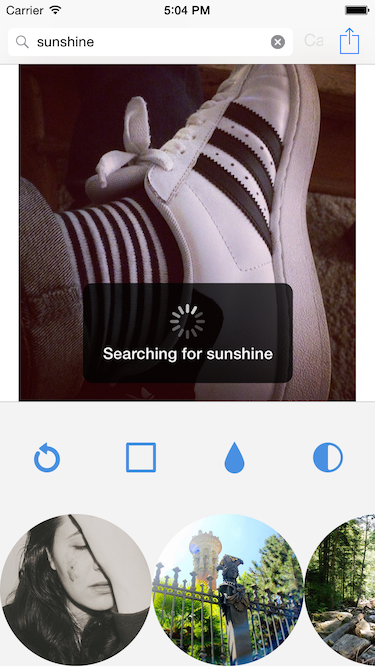
- (void)didReceiveMemoryWarning {
  [super didReceiveMemoryWarning];
  // Dispose of our image cache
  [self.imageCache removeAllObjects];
}
Importing Libraries
Importing Objective-C Libraries in Swift
Because Swift is a relatively new languages, there are not many libraries written natively for it right now. Thankfully, Apple thought this through properly and provided us a method to use 98% of Objective-C code with Swift.
For this, we’ll create a file called a Bridging Header. This file imports Objective-C code and lets Swift access it.
Got to your project navigator, right click on the Supporting Files directory and select New File > Header File. Save it in the Swift Photo App directory with the name Swift_Photo_App-Bridging-Header.h. Delete de contents of this new file and add the following imports, which are the libraries we’ll use:
#import <UIView+PREBorderView.h>
#import <FlickrKit.h>
#import <SwipeView.h>
#import <MBProgressHUD.h>
#import <NYXImagesKit.h>
Now click on your project in the navgation area, click on Swift Photo App target, then on Build Settings at the top. Search for the Swift Compiler - Code Generation section, then find Objective-C Bridging Header and set it to Swift Photo App/Swift_Photo_App-Bridging-Header.h.
Those imports will be compiled into Swift code that will be usable from any .swift file.
Extensions
Swift Extensions
Swift provides a really nice and convenient way of extending existing classes without subclassing or obtaining the original source. This is achieved using Extensions. We’ll create an extension for UIImageView, which will let us load images in a background thread and display a loading indicator while doing this.
Right click on the Swift Photo App folder and select New Group. Name it Extensions. Now right click on the newly-created folder and add a Swift file called UIImageView.swift.
To create an extension, just write:
extension UIImageView {
}
This let’s us extend the UIImageView class. Now inside create the following function:
func loadImageInBackground(url: URL, completion: ((_ success: Bool, _ image: UIImage?) -> ())? = nil) {
}
Pretty standard function prototype, we pass a URL and a completion closure, which will be called when the image load is done or fails. Let’s look at this in detail.
((_ success: Bool, _ image: UIImage?) -> ())? = nil
A closure is a self-contained block of functionality. You can think of it as the combination of a function pointer and its necessary context. They are used as in-place replacements for asynchronous calls, delegate calls and callbacks. In this case, we are defining a two-parameter closure, with no return. The important detail here is the usage of the optional ?keyword. This denotes that a parameter is optional. As it’s used on the image parameter, the image sent to the closure can be nil. Because the whole closure is surrounded by parenthesis and a ?, and is set to nil, that means that the closure itself is optional and set to nil by default, so when we call this function, we don’t need to pass a closure if we don’t need to perform any code after the image loading is done.
The first thing we want to do is create a loading indicator, and we’ll use a UIActivityIndicator for this. Write the following code in the function:
// Execute in main thread
let largeSide = max(frame.height, frame.width)
let loadingSpinner = UIActivityIndicatorView(frame: CGRect(x: 0, y: 0, width: largeSide, height: largeSide))
loadingSpinner.activityIndicatorViewStyle = (self.image == nil ? .gray : .white)
self.addSubview(loadingSpinner)
First we find which side of our current view’s frame is larger, then use that to create a the UIActivityIndicatorView. We set the color depending on whether there is already an image on the view, and then we start the animation and add the indicator to the view.
Now the main part of the function, we’ll execute the loading in a background thread. iOS and Mac OS X both have support for POSIX threads, but the best way to handle threading is using Grand Central Dispatch or GCD, which is Apple’s threading technology. One important thing to note is that ANY UI operations have to be performed on the main thread. Add the following:
func loadImageInBackground(url: URL, completion: ((_ success: Bool, _ image: UIImage?) -> ())? = nil) {
}// Nested Function
// Returns activity to main thread
func returnToMainThread(activityIndicator: UIActivityIndicatorView, status: Bool, image: UIImage, completion: ((_ success: Bool, _ image: UIImage?) -> ())? = nil) {
  DispatchQueue.main.async { [weak self] in
    if let view = self {
      view.image = image
    }
    activityIndicator.removeFromSuperview()
    completion?(status, image)
  }
}

// Queue in GCD
DispatchQueue.global(qos: .userInteractive).async {
  do {
    let imageData = try Data(contentsOf: url)

    guard let downloadedImage = UIImage(data: imageData) else {
      returnToMainThread(activityIndicator: loadingSpinner, status: false, image: UIImage(named: "icon_empty")!, completion: completion)
      return
    }

    returnToMainThread(activityIndicator: loadingSpinner, status: true, image: downloadedImage, completion: completion)
  } catch let error {
    print("Error loading from URL \(url), \(error.localizedDescription)")

    returnToMainThread(activityIndicator: loadingSpinner, status: false, image: UIImage(named: "icon_empty")!, completion: completion)
  }
}
Let’s go through this. The first line dispatches the closure to a background execution queue. That’s all we need to access a background thread. GCD takes care of scheduling and resource management depending on the queue priority. The first line also defines [weak self] inside the closure. What this tells the compiler is that any references to self(this) inside the closure should not increase reference counts to the object. This will prevent reference cycles, where two resources have a circular reference that will cause those objects never to be released
The actual image loading is done by using Data’s contentsOfURL constructor, which downloads data at an URL. After that we create an image from the downloaded data by using UIImages’ data constructor.
Last, but not least, we switch back to our main thread to set the image onto the UIImageView and then call the completion block. We do this by again using DispatchQueue.main.async, but now we get the main queue, where UI execution is supposed to go.
We also remove the loading indicator from the superview, in this case the UIImageView itself.
Swift View Controller
Swift Setting up
iOS is heavily MVC oriented, so its always good to have some background on that subject; we will be using concepts from that pattern in this tutorial.
In this particular section we are referring to the C in the MVC which refers to the controller, in this class we will include all of the code that controls the view.
With the project setup done we have a built-in class called ViewController, which inherits from UIViewController, this class is very important regardless of which language we are using (Swift or Objective-C).
Our app will have access to the Flickr API, at first, it retrieves the first 10 interesting pictures and lists them in the SwipeView at the bottom, but it also allows to search for pictures by keyword. You can select one of those pictures to perform minor alterations.
In Swift, most of of the time no imports are needed. The compiler figures out what “modules” are necessary and imports them itself. Because we previously created the Swift_Photo_App-Bridging-Header.h, which imports all the necessary libraries, we don’t have to import anything right now.
We need to implement some protocols, so define the ViewController class as this:
class ViewController: UIViewController, UISearchBarDelegate, SwipeViewDataSource, SwipeViewDelegate
Let’s define the necessary variables:
var flickr: FlickrKit
var imageCache: NSCache
var photoData: Array<Dictionary<String, Any>>?
var mainPhotoURL: URL?
- photoData: will hold the pictures info we retrieve from flickr
- mainPhotoURL: the URL for the current selected image
- flickr: an instance of the initialized flickr kit that allows us to search for pictures.
- imageCache: cache that avoids downloading the same image twice.
You can notice that we are using the optional (?) syntax again here. That is because we want photoData and mainPhotoURL to be nill-able, meaning that they can be NULL. Once these variables are created, we will create a lazy initializer for flickr and imageCache variables, transforming them into computed properties, instead of simple variables.
lazy var flickr: FlickrKit = {
  let client = FlickrKit.shared()!
  client.initialize(withAPIKey: "8a20a8e225d00fa03d1758f3e26b4609", sharedSecret: "d752ff65a5a1a02a")
  return client
}()

lazy var imageCache: NSCache<AnyObject, AnyObject> = {
  let cache = NSCache<AnyObject, AnyObject>()

  return cache
}()
Lazy initializers are great because they delay creation until its absolutely necessary to use the object. What we do here is define two lazy variables and create an initializer for them. Once they are called the first time, this code will be called ONCE, and never again, letting us respond on-demand when the objects are needed.
View Lifecycle
Now we are all set to start adding some interesting functionality.
At first we are going to dive into the view lifecycle, the heart of the UIViewController. All that information is in the link provided above, and it is very important to emphasize you learn it by heard because it will help you in building better apps.
The first method in the view lifecycle that we encounter is the viewDidLoad. In this method we are adding a UISearchBar to the navigation bar and also disabling all of the toolbar buttons. This sets an initial state of the view.
To add the search bar place this code inside the viewDidLoad method:
let searchBar = UISearchBar(frame: CGRect(x: 0, y: 0, width: 200, height: 64))
searchBar.autocorrectionType = .no
searchBar.autocapitalizationType = .none
searchBar.isUserInteractionEnabled = true
searchBar.enablesReturnKeyAutomatically = true
searchBar.returnKeyType = .search
searchBar.placeholder = "Search Flickr"
searchBar.delegate = self

self.navigationItem.titleView = searchBar
The last line we added will put the searchBar view into the titleView of our MenuBar.
To disable all of the button we will create a new function called toggleInterfaceButtons like this:
func toggleInterfaceButtons(imageAvailable: Bool) {
  resetButton.isEnabled = imageAvailable
  CropButton.isEnabled = imageAvailable
  blurButton.isEnabled = imageAvailable
  contrastButton.isEnabled = imageAvailable
  shareButton.isEnabled = imageAvailable
}
and we will call this method in the viewDidLoad like this:
// Disable interface buttons while there are no images
toggleInterfaceButtons(imageAvailable: false)
Let’s run the app, we should see something like this:

The next method that we are covering in this tutorial is the viewDidLayoutSubviews, like the documentation states, this method informs when the view has laid out its subviews, so we will take this opportunity to add a divider on the top of the toolbar like so:
override func viewDidLayoutSubviews() {
  super.viewDidLayoutSubviews()
  // add a one-line divider to the top of the tools view
  toolsView.addOneRetinaPixelLine(with: .lightGray, at: PREBorderPositionTop)
}
Note: the method addRetinaPixelBorder is provided by a UIView Category called PREBorderView, which we import using the bridging headers and CocoaPods.
Next comes the viewDidAppear method, in this method we will invoke the flickr API, particularly to get the latest “interesting” pictures listed by that site. To do that we have to instantiate a FKFlickrInterestingnessGetList, and then pass it to our flickr object to make the call.
override func viewDidAppear(animated: Bool) {
  let interesting = FKFlickrInterestingnessGetList()
  interesting.per_page = "10"
We are setting a fixed amount of pictures to return and we won’t be managing any pagination at the moment.
Next we need to add a loading view to wait for the call to return and let the user know that the app is working on the request, in order to achieve that we do this:
  // Show loading HUD
  let hud = MBProgressHUD.showAdded(to: self.view, animated: true)
  hud?.labelText = "Loading interesting Photos..."
We will also need to implement a method for dealing with the flickr API response, and handle UI working in the proper thread:
  func parsePhotos(response: NSDictionary) {
    guard let info = response["photos"] as? NSDictionary else {
      print("Error parsing photos.")
      return
    }

    photoData = info["photo"] as? Array
    if Thread.current.isMainThread {
      swipeView.reloadData()
    }
    else
    {
      DispatchQueue.main.async { [weak self] in
        self!.swipeView.reloadData()
      }
    }
  }
This function finds out if the response has any photos, and dispatches the update to the main thread, if necessary, reloading the swipeView’s content.
To make the actual call we’ll do this inside viewDidAppear function:
// Call the Flickr API
flickr.call(interesting) { [weak self] (response, error) in
  if error != nil {
    print("Error getting interesting photos: \(error!.localizedDescription)")
  }
  else
  {
    self!.parsePhotos(response: response!)
  }

  // Hide the loading HUD
  DispatchQueue.main.async {
    if let this = self {
      MBProgressHUD.hide(for: this.view, animated: true)
    }
  }
}
As we did in our UIImageView extension, we’ll use a [weak self] reference here, to prevent reference loops.
Closures are very useful and powerful but as we know with great power comes great responsibility, to know all about closures and their syntax please go here
Inside of the closure we can deal with the response that was received from the API, checking for errors and then obtaining the pictures. Once we’ve done that we need to update the UI accordingly.
Because the call was being executed in the background we need to request the foreground thread to perform the UI updates, that’s done with this code:
// Hide the loading HUD
DispatchQueue.main.async {
  if let this = self {
    MBProgressHUD.hide(for: this.view, animated: true)
  }
}
This particular snippet uses blocks and GCD (Grand Central Dispatch), what we are doing is requesting the main thread asynchronously to perform these updates.
The next method that we’ll be adding is didReceiveMemoryWarning, this method is invoked whenever the app received a memory warning so that it can dispose of any unnecessary resources that can be recreated in our case is the cache memory so we will clear it.
override func didReceiveMemoryWarning() {
 super.didReceiveMemoryWarning()

 // Dispose of any resources that can be recreated.

 // Dispose of our image cache
 imageCache.removeAllObjects()
}
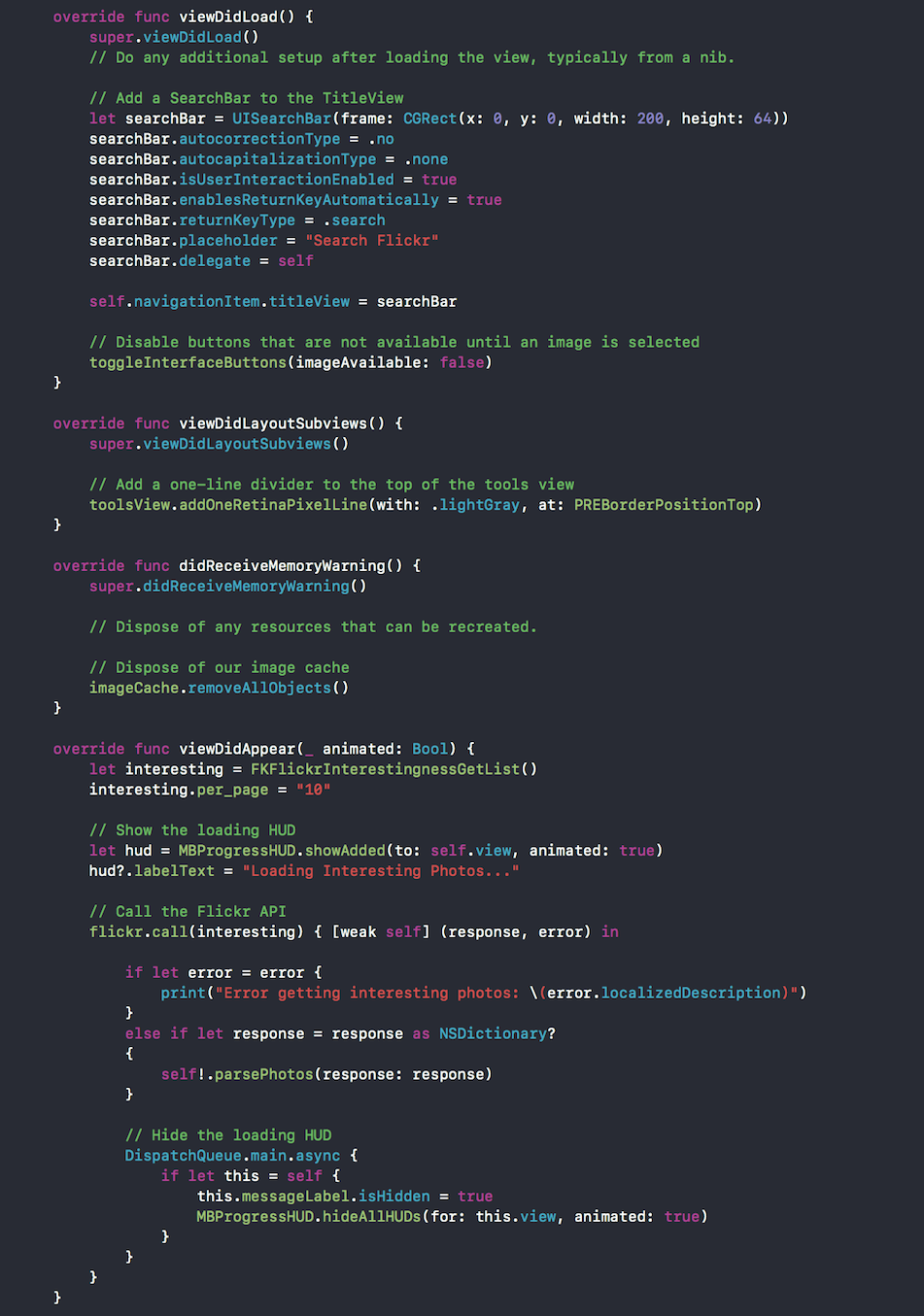
Here’s what the code should look like right now:
At this point we are requesting the pictures but we need to display them, to do that we will need to implement the SwipeViewDelegate and SwipeViewDataSource protocols, to know more about protocols refer to this section.
To make our view controller the data source and delegate of the SwipeView, we need to set it explicitly, this can be achieved via the storyboard or via code in the view controller itself. We already connected both data source and delegate using storyboards during the UI tutorial video, so please refer back to that to make the connection if you didn’t.
To conform to SwipeViewDataSource protocol we must declare the protocol in the class declaration:
class ViewController: UIViewController, UISearchBarDelegate, SwipeViewDataSource, SwipeViewDelegate
and implementing the following methods:
func numberOfItems(in swipeView: SwipeView!) -> Int

func swipeView(_ swipeView: SwipeView!, viewForItemAt index: Int, reusing view: UIView!) -> UIView!
And for the SwipeViewDelegate all of the methods are optional and we can choose which ones to implement to achieve the desired functionality, in our case we will implement:
func swipeView(_ swipeView: SwipeView!, didSelectItemAt index: Int)
for the first method we’ll do this:
func numberOfItems(in swipeView: SwipeView!) -> Int {
  guard let data = photoData else {
      return 0
  }

  return data.count
}
This method is telling the swipeView that it will have as many elements as there are in the photoData array.
Next we have viewForItemAtIndex
func swipeView(_ swipeView: SwipeView!, viewForItemAt index: Int, reusing view: UIView!) -> UIView! {

  guard let list = self.photoData else {
    return nil
  }

  let item = list[index]

  let url = self.flickr.photoURL(for: FKPhotoSizeMedium640, fromPhotoDictionary: item)

  let dimensions = swipeView.frame.height
  let cornerRadius = dimensions/2.0
  let rect = CGRect(x: 0, y: 0, width: dimensions, height: dimensions)

  let imageView = UIImageView(frame: rect)
  imageView.layer.cornerRadius = cornerRadius
  imageView.contentMode = UIViewContentMode.scaleAspectFill
  imageView.clipsToBounds = true

  if let image = imageCache.object(forKey: url as AnyObject) as? UIImage {
    imageView.image = image
  }
  else
  {
    imageView.loadImageInBackground(url: url!) { [weak self] (success, image) in
      if success {
        self?.imageCache.setObject(image!, forKey: url as AnyObject)
      }
    }
  }

  return imageView
}
This one is a little bit more complex, in this method we are creating the views that will be displayed in the swipeView, in this particular case it’s an UIImageView, we create it from scratch and set all of the necessary attributes for the image to display correctly. We will also be making use of the UIImageView category we created previously to download the corresponding image in the background, we are also storing it in our cache to avoid downloading more than once
If we run our app we should be able to see some pictures:

If you select them nothing will happen, so let’s implement that last bit of code:
func swipeView(_ swipeView: SwipeView!, didSelectItemAt index: Int) {
  // Disable controls for a second
  toggleInterfaceButtons(imageAvailable: false)

  guard let list = self.photoData else {
    return
  }


  let item = list[index]

  let url = self.flickr.photoURL(for: FKPhotoSizeLarge1024, fromPhotoDictionary: item)

  // Save the main photo's URL
  mainPhotoURL = url


  if let cachedImage = imageCache.object(forKey: url as AnyObject) as? UIImage {
    mainImageView.image = cachedImage

    toggleInterfaceButtons(imageAvailable: true)
  }
  else
  {
    mainImageView.loadImageInBackground(url: url!) { [weak self] (success, image) in
      if success {
        self?.imageCache.setObject(image!, forKey: url as AnyObject)
      }

      self!.toggleInterfaceButtons(imageAvailable: success)
    }
  }
}
In this method we are telling the swipeView what to do when the user selects one of the views, in our case we will check if it’s in our cache and if it’s not we will download it in the background just like we did when listing them. this is because we are requesting a different size so if we haven’t selected it before, it will be a cache miss.
Once the image is ready we set it as our main image and enable the toolbar for the editing part!, the app should look like this once you select an image:

Now to implement the editing features! we added an outlet for all of the buttons actions and called it photoActionPressed, in this method we will distinguish between all of the buttons and perform the corresponding action.
@IBAction func photoActionPressed(_ sender: UIButton) {
  if sender == resetButton {
    if let cachedImage = imageCache.object(forKey: mainPhotoURL as AnyObject) as? UIImage {
      mainImageView.image = cachedImage
    }
  }
  else if sender == cropButton {
    mainImageView.image = mainImageView.image?.crop(to: mainImageView.frame.size)
  }
  else if sender == blurButton {
    mainImageView.image = mainImageView.image?.gaussianBlur(withBias: 10)
  }
  else if sender == contrastButton {
    mainImageView.image = mainImageView.image?.contrastAdjustment(withValue: 50.0)
  }
}
We also added another action to enable sharing via the UIActivityViewController, the method is called shareButtonPressed
@IBAction func shareButtonPressed(_ sender: AnyObject) {
  let objectsToShare: Array = [mainImageView.image!]
  let controller = UIActivityViewController(activityItems: objectsToShare, applicationActivities: nil)

  present(controller, animated: true, completion: nil)
}
Finally we’ll be adding the search functionality, this is done via the UISearchBarDelegate, we will be implementing 4 methods:
func searchBarSearchButtonClicked(_ searchBar: UISearchBar)
func searchBarCancelButtonClicked(_ searchBar: UISearchBar)
func searchBarTextDidBeginEditing(_ searchBar: UISearchBar)
func searchBarTextDidEndEditing(_ searchBar: UISearchBar)
All of these methods will be invoked automatically thanks to this line that we added previously in the viewDidLoad method:
searchBar.delegate = self
Let’s dive into the first method:
func searchBarSearchButtonClicked(_ searchBar: UISearchBar) {
  let search = FKFlickrPhotosSearch()
  search.text = searchBar.text
  search.per_page = "10"

  // Show the loading HUD
  let hud = MBProgressHUD.showAdded(to: self.view, animated: true)
  hud?.labelText = "Searching for \'\(searchBar.text!)\'"

  // Call Flickr API
  flickr.call(search) { [weak self] (response, error) in
    if error != nil {
      print("Error getting photos for keyword(s) \(String(describing: searchBar.text)): \(String(describing: error?.localizedDescription))")
    }
    else
    {
      self?.parsePhotos(response: response as NSDictionary)
    }

    // Hide the loading HUD
    DispatchQueue.main.async {
      if let this = self {
        MBProgressHUD.hide(for: this.view, animated: true)
      }
    }
  }
  searchBar.resignFirstResponder();
}
We can see some similarities with some stuff we did earlier, the only difference is that now instead of getting the “interesting” pictures we’ll be making a search by keywords that we typed on the searchbar, the process of parsing and checking for errors is the same as we saw before.
Now for the otter methods:
func searchBarCancelButtonClicked(_ searchBar: UISearchBar) {
 searchBar.text = ""
 searchBar.resignFirstResponder()
}
This one tells the searchbar that the cancel button was pressed so we need to reset the text and resign as the first responder. When we resign the first responder, the UITextField inside the UISearchBar releases focus and the keyboard is dismissed.
func searchBarTextDidBeginEditing(_ searchBar: UISearchBar) {
  searchBar.setShowsCancelButton(true, animated: true)
}
This one tells the searchbar to display the cancel button once the user has started typing
func searchBarTextDidEndEditing(_ searchBar: UISearchBar) {
  searchBar.setShowsCancelButton(false, animated: true)
}
Finally this one hides the cancel button when the editing finished.
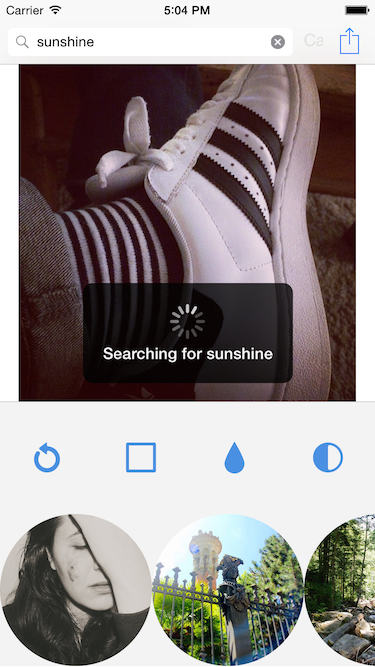
And that’s it! when we run the app we’ll have full functionality:
Unit tests in Xcode
Swift Unit Tests
iOS and Mac OS X provide an interface to execute Unit and Performance tests.
We’ll create a unit test to find out if the Flickr API is working and configured correctly, and a Performance test to find out the efficiency of the image editing library we use.
Go to your project, open Swift_Photo_AppTests.swift. Delete all exiting code except for setUp() and tearDown(). In the setup function, we’ll create the Flickr client and configure it with our API Key and Secret:
override func setUp() {
 super.setUp()

 // Put setup code here. This method is called before the invocation of each test method in the class
 FlickrKit.shared().initialize(withAPIKey: "8a20a8e225d00fa03d1758f3e26b4609", sharedSecret: "d752ff65a5a1a02a")
}
Now we’ll create a function to test the API:
func testInterestingness() {
  let flickr = FlickrKit.shared()
  let interesting = FKFlickrInterestingnessGetList()

  flickr!.call(interesting) { (response, error) in
    if error == nil {
      XCTAssert(true, "Pass: \(response!)")
    }
    else
    {
      XCTAssert(false, "Fail: \(error!)")
    }
  }
}
It’s pretty easy to see what this function does. It retrieves a list of interesting photos from the Flickr API. If the request is complete and we get no errors, we call XCAssert() with true and a success string, otherwise we call it with false and a failure string.
For the performance test, Apple provides a block that measures performance time. We’ll load a local image and modify it with one filter. Note that this performance number will include BOTH the reading and loading of the image from disk, as well as the performance penalty of the image filter. If you want to decouple those, simple put the image loading in setUp() or outside the measureBlock:
func testFilterPerformance() {
  self.measure {
    var image = UIImage(named: "background")
    image =  image?.edgeDetection(withBias: 50)
  }
}
To run the tests, you can either switch to the Test Navigator (Command-5 or View > Navigators > Show Test Navigator, or by clicking on the Navigator icon on the top of the Navigator Panel). You can also run tests by clicking on the rhomboid symbol next to the class declaration or functions declarations. To run all tests at once hit Command - U.
Objective C Unit Tests
Unit tests
Just like swift unit tests, in Objective C they have the same basic concepts, because this functionality is provided by iOS, in this part we’ll demonstrate the same tests as shown in Swift Unit Tests except in a different Language
Go to your project, open Objc_Photo_AppTests.m Delete all exiting code except for setUp and tearDown. In the setup function, we’ll create the Flickr client and configure it with our API Key and Secret:
- (void)setUp {
  [super setUp];
  // Put setup code here. This method is called before the invocation of each test method in the class.
  [FlickrKit.sharedFlickrKit initializeWithAPIKey:@"8a20a8e225d00fa03d1758f3e26b4609" sharedSecret:@"d752ff65a5a1a02a"];
}
Now we’ll create a function to test the API:
- (void)testInterestingness {
  FlickrKit * flickr = FlickrKit.sharedFlickrKit;
  FKFlickrInterestingnessGetList *interesting = [[FKFlickrInterestingnessGetList alloc] init];
  [flickr call:interesting completion:^(NSDictionary *response, NSError *error) {
    if(error){
      XCTAssert(NO, @"Failed %@", error.localizedDescription);
    }else{
      XCTAssert(YES, @"Pass %@", [response description]);
    }
  }];
}
It’s pretty easy to see what this function does. It retrieves a list of interesting photos from the Flickr API. If the request is complete and we get no errors, we call XCAssert() with YES and a success string, otherwise we call it with NO and a failure string.
For the performance test, Apple provides a block that measures performance time. We’ll load a local image and modify it with one filter. Note that this performance number will include BOTH the reading and loading of the image from disk, as well as the performance penalty of the image filter. If you want to decouple those, simple put the image loading in setUp() or outside the measureBlock:
- (void)testFilterPerformance {
  // This is an example of a performance test case.
  [self measureBlock:^{
    UIImage *image = [UIImage imageNamed:@"background"];
    image = [image edgeDetectionWithBias:50];
  }];
}
To run the tests, you can either switch to the Test Navigator (Command-5 or View > Navigators > Show Test Navigator, or by clicking on the Navigator icon on the top of the Navigator Panel). You can also run tests by clicking on the rhomboid symbol next to the class declaration or functions declarations. To run all tests at once hit Command - U.